---
title: "Markdown Widget"
component: "insights"
version: "4.3"
module: "widgets"
html_url: "/insights/4.3/widgets/markdown-widget"
canonical_url: "https://www.tigergraph.com/docs/insights/4.3/widgets/markdown-widget"
markdown_url: "https://www.tigergraph.com/docs/insights/4.3/widgets/markdown-widget.md"
---

[View as HTML](https://www.tigergraph.com/docs/insights/4.3/widgets/markdown-widget)

# Markdown Widget

TigerGraph Insights introduces a Markdown Widget as a customizable feature within the dashboard. Empowering users to incorporate formatted text, links, images, and diverse content to enrich the dashboard experience. Users can effortlessly employ Markdown syntax, witnessing real-time rendering within the widget. Supporting prevalent Markdown features like headers, lists, links, images, videos, and code blocks, the widget ensures versatility. Rendered content is responsive, adapting to various screen sizes, while allowing customization in terms of font size, color, and other styling options for an optimal user experience.

## Create Markdown Widget

Click **Markdown** Widget.
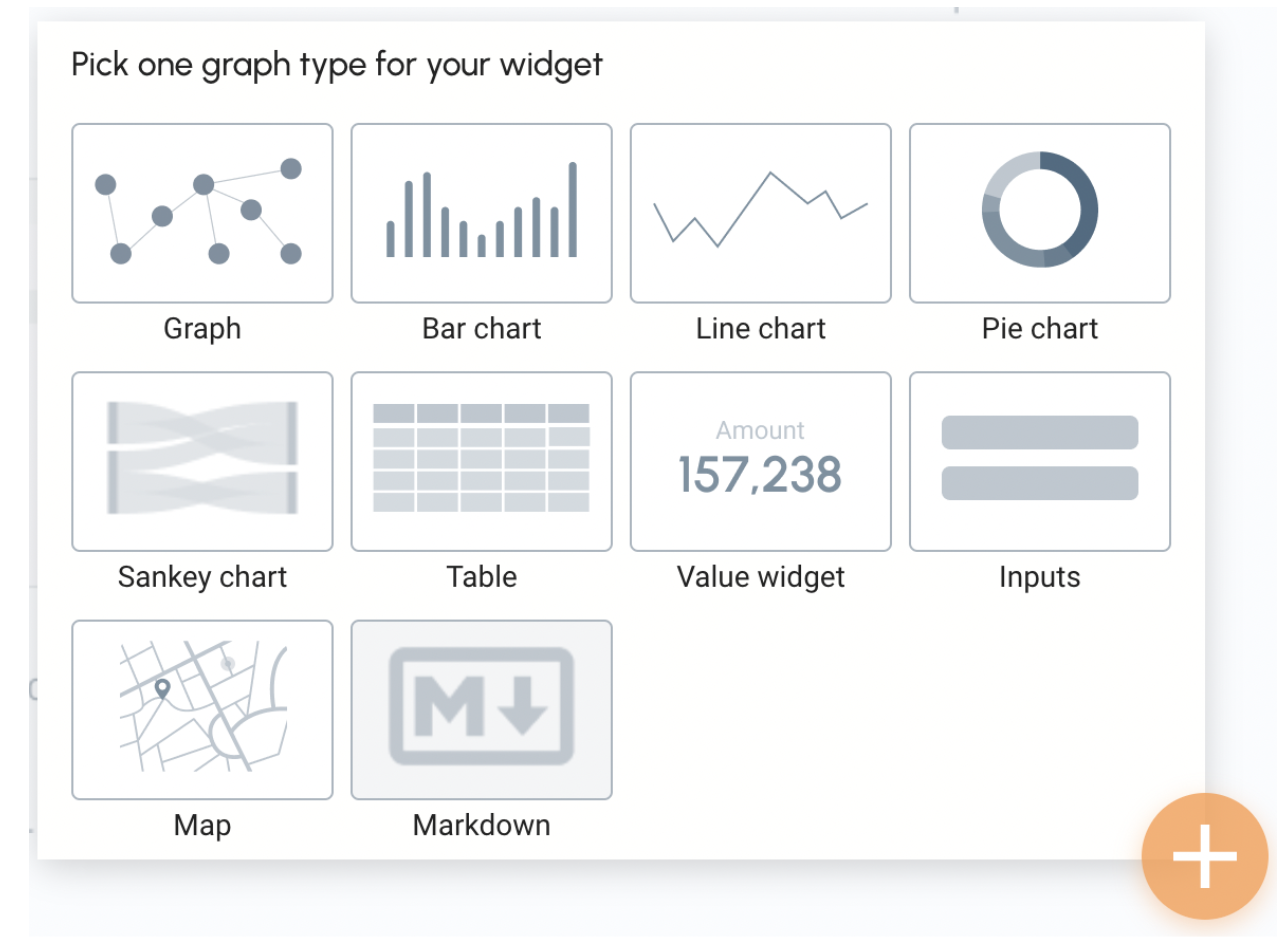
![markdown1](https://www.tigergraph.com/docs/insights/4.3/widgets/_images/markdown1.png) 

On the left side there is an edit area and on the right side you will see a display area.
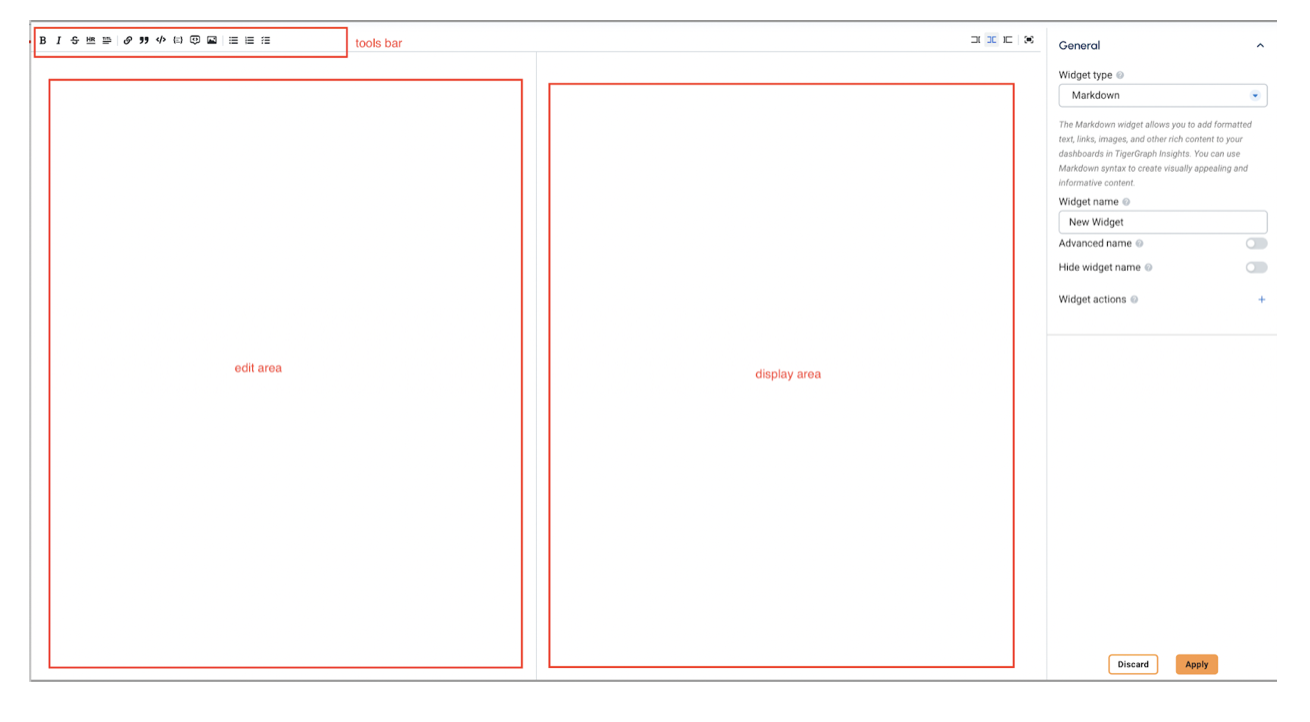
![markdown2](https://www.tigergraph.com/docs/insights/4.3/widgets/_images/markdown2.png) 

Markdown has very powerful text display capabilities, and can set text title, bold, and table.

```markdown
# Title
## Title
### Title
nomal text
**bold text**
| table header | table header|
| ------ | ------ |
| table cell| table cell| |
| table cell|  table cell |
```
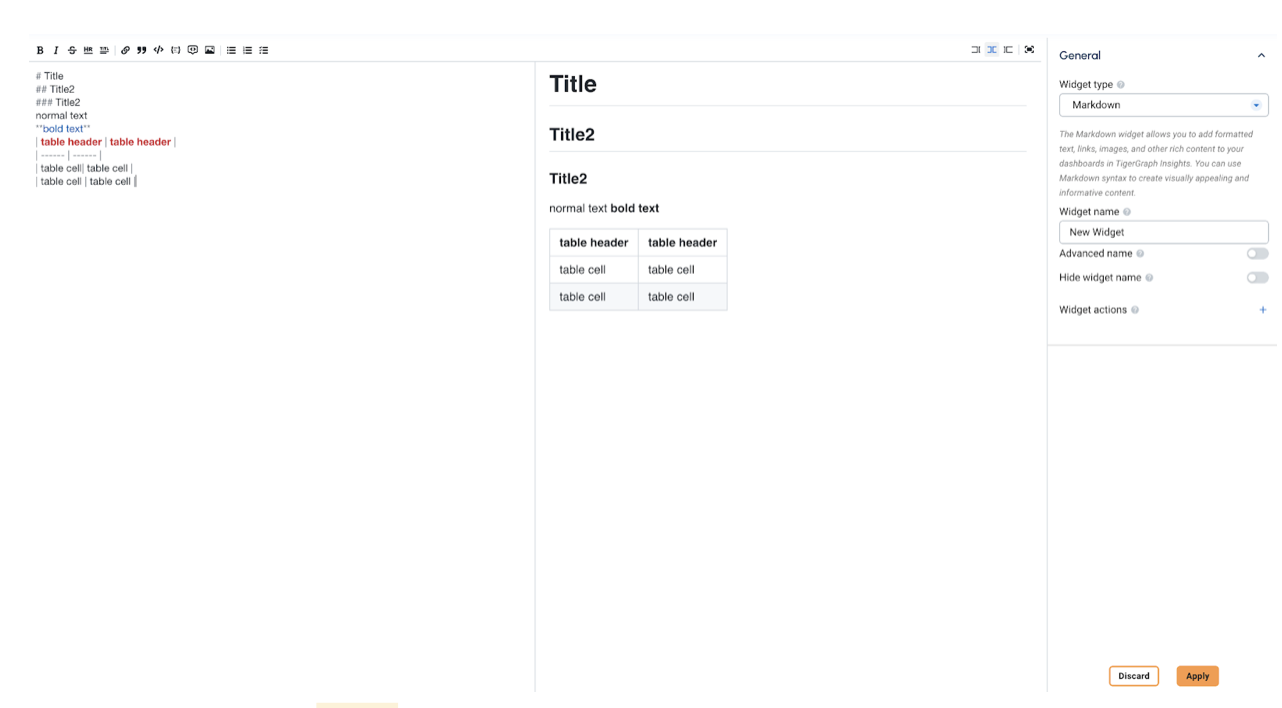
![markdown3](https://www.tigergraph.com/docs/insights/4.3/widgets/_images/markdown3.png) 

Figure 1\. Text Display Editing

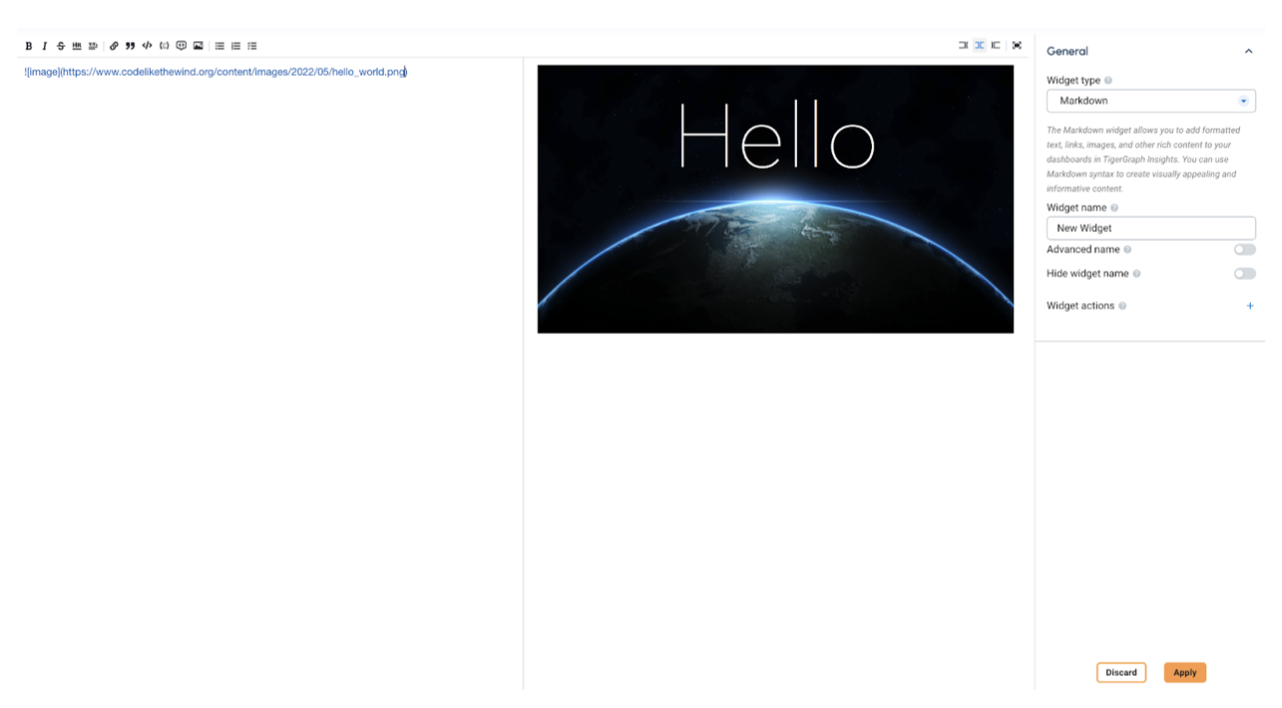
Users can also use Markdown to add images.

```markdown
![image](https://example.com/your-image.png)
```

![markdown4](https://www.tigergraph.com/docs/insights/4.3/widgets/_images/markdown4.png) 

Figure 2\. Adding an Image

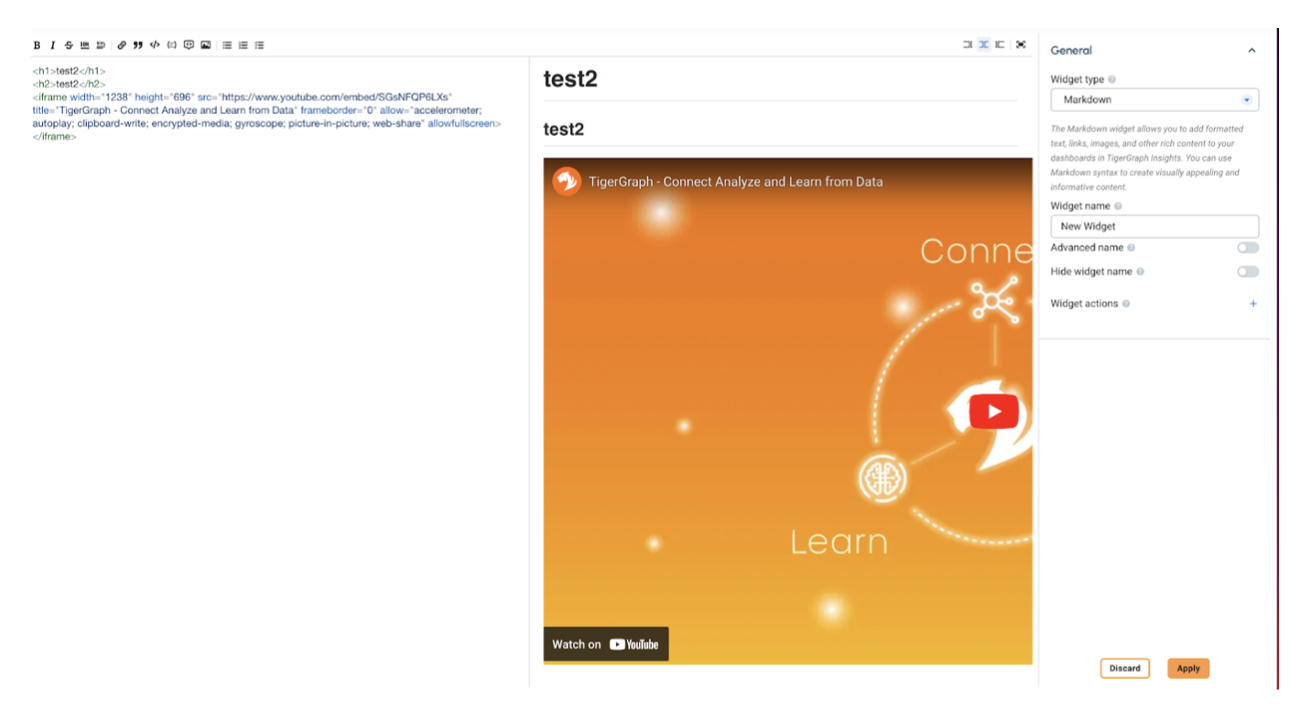
Users can also use Markdown to add HTML.

```markdown
<h1>test2</h1>
<h2>test2</h2>
<iframe width="1085" height="678" src="https://www.youtube.com/embed/Mf8PuOElGpg" title="Detecting Fraud &amp; Anti-Money Laundering (AML) Violations In Real-Time" frameborder="0" allow="accelerometer; autoplay; clipboard-write; encrypted-media; gyroscope; picture-in-picture; web-share" allowfullscreen></iframe>
```

![markdown5](https://www.tigergraph.com/docs/insights/4.3/widgets/_images/markdown5.png) 

Figure 3\. Adding HTML

## HTML Restrictions

The `<iframe>` tag is subject to security restrictions and cannot:

* Have embedded websites that violate the `same-origin policy`.
* Have X-Frame-Options set to `DENY` or `SAMEORIGIN`.
* Have `Content-Security-Policy` headers that disallow embedding.

### Same-origin policy restriction

The `<iframe>` tag follows the `same-origin policy`, which means it can only embed websites that have the same `protocol`, `host`, and `port` as the page containing the `<iframe>`.

If the embedded website doesn't meet the `same-origin` requirements, the browser will block its loading.

### X-Frame-Options header

Websites can control whether they can be embedded in `<iframe>` tags by setting the `X-Frame-Options` header in their responses. If a website sets `X-Frame-Options` to `DENY` or `SAMEORIGIN`, the browser will refuse to load the website within an `<iframe>`.

### Content-Security-Policy header

Websites can define security policies, including whether they allow embedding in `<iframe>` tags, by setting the `Content-Security-Policy` header.