Payment Method
The Payment Methods section allows you to add, manage, and remove payment options for your Savanna account.
Add a new Payment Method
-
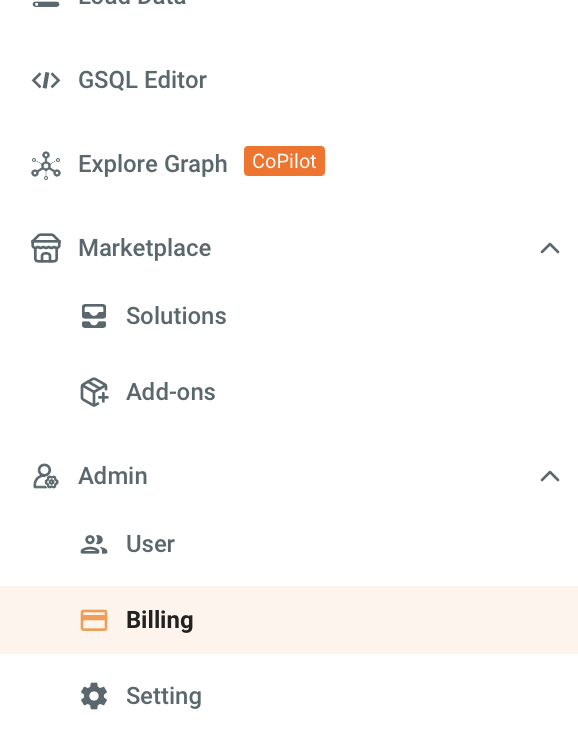
Navigate to the Billing tab in the left navigation.
-
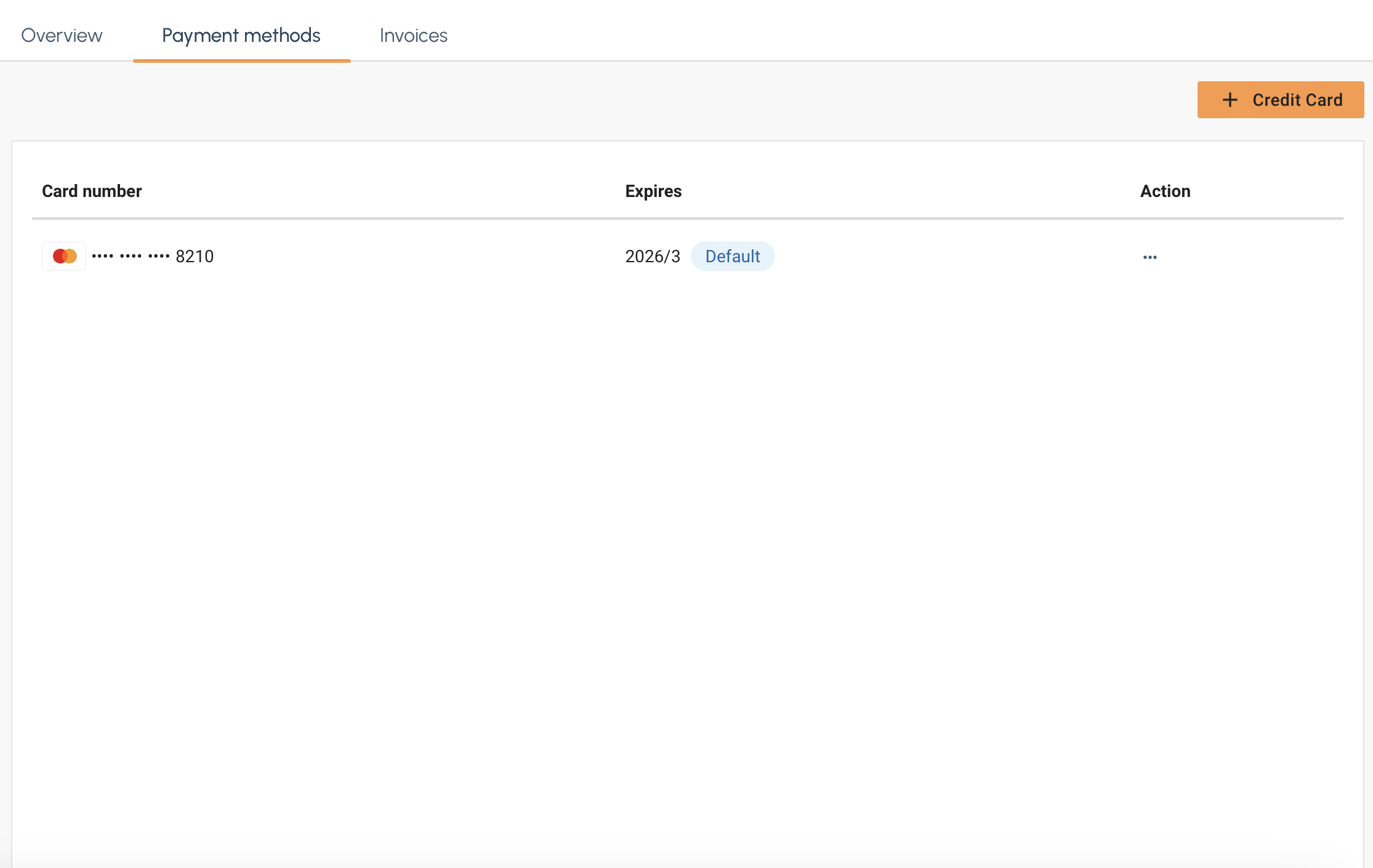
Select the Payment Method tab and then select the + Credit Card button on the right.

-
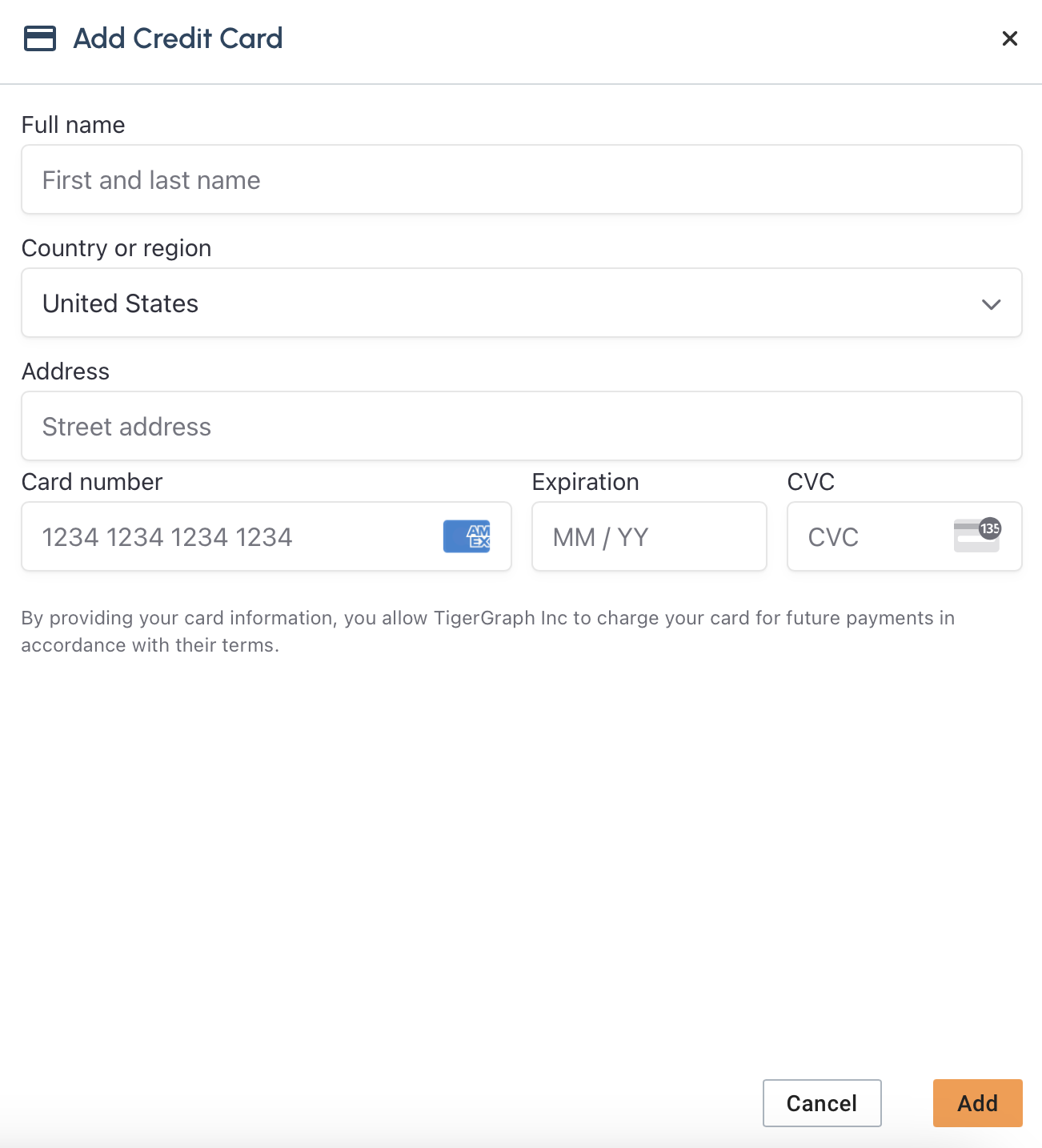
The Add Credit Card panel should apper on the right.
-
Fill in your credit card information and select Add
-
After you select Add you new payment method should appear in the list.
Delete a payment method
-
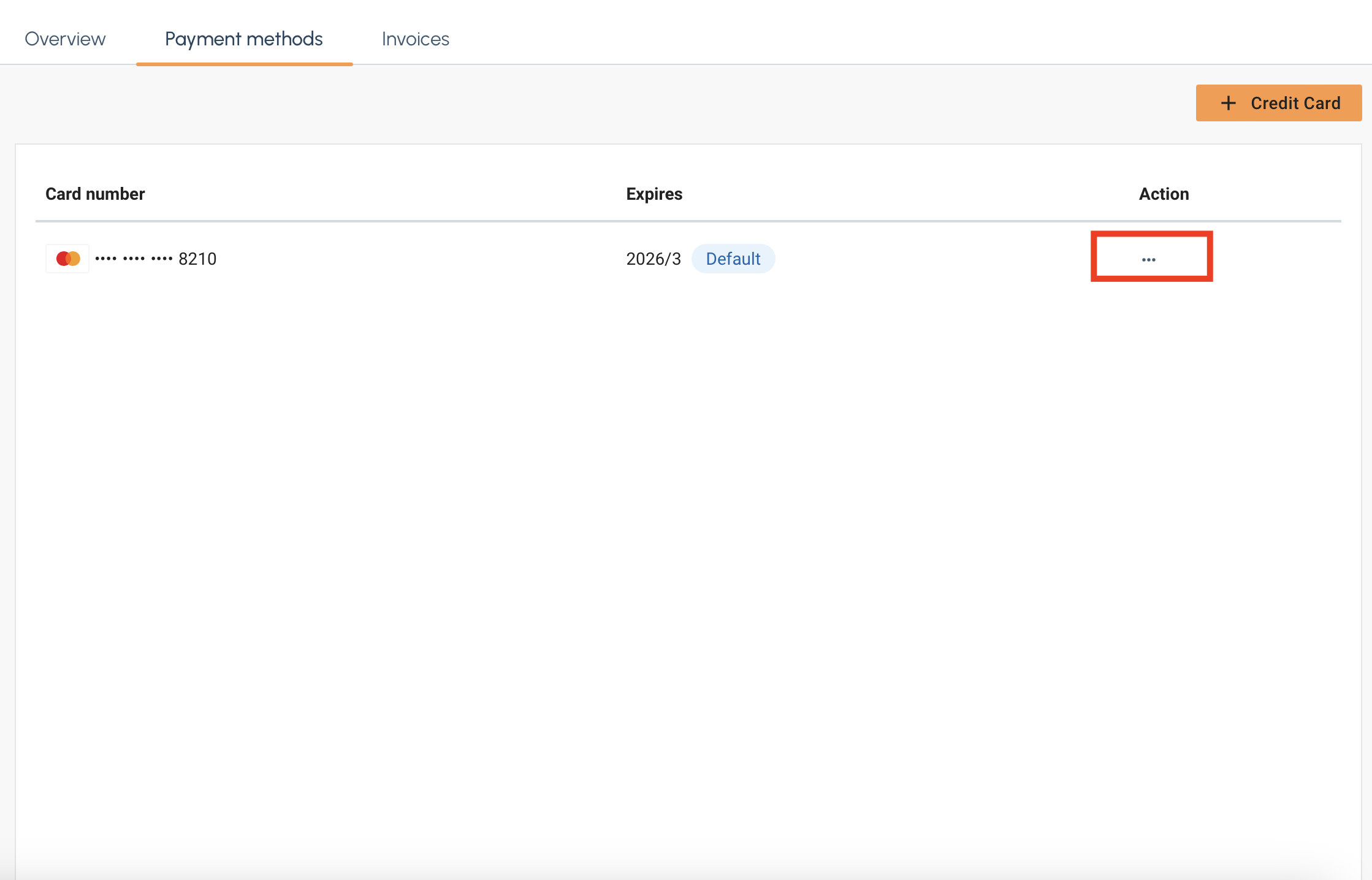
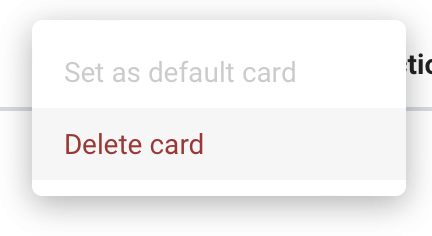
First, in the payment method list select the … under the Action column.
-
Click on Delete Card and the card will be removed from the list.
Subscriptions
You can also pay for Savanna via AWS marketplace subscription.
|
Upon subscription, AWS Marketplace subscription will only be set as the default payment method if there is currently an invoice balance of 0 and no existing usage. If you have an existing account or would like to switch payment methods to AWS Marketplace, please contact savanna-support@tigergraph.com. |
-
Click the link above to navigate to our AWS Marketplace listing.
-
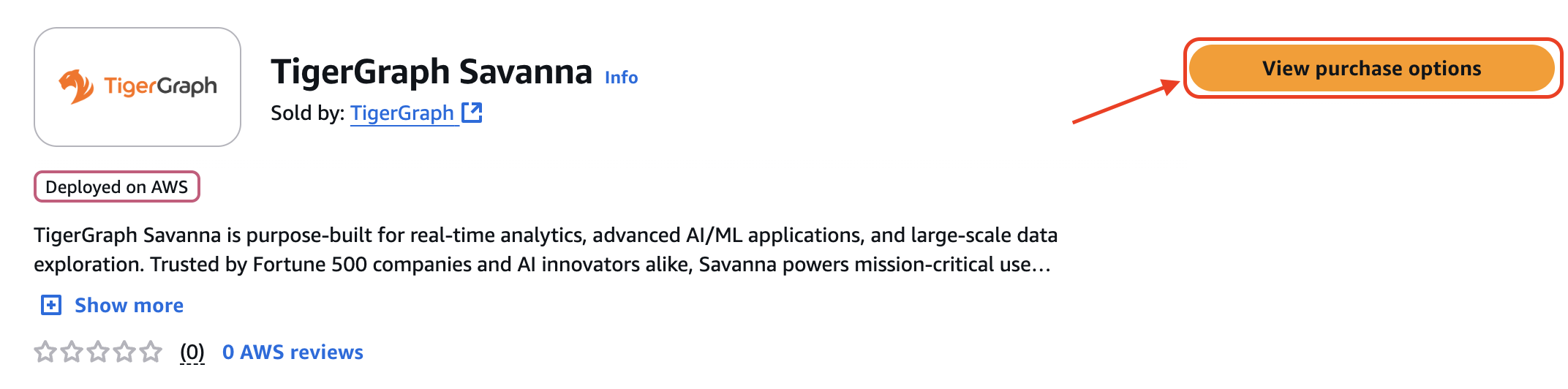
Select the View purchase options button on the right.
-
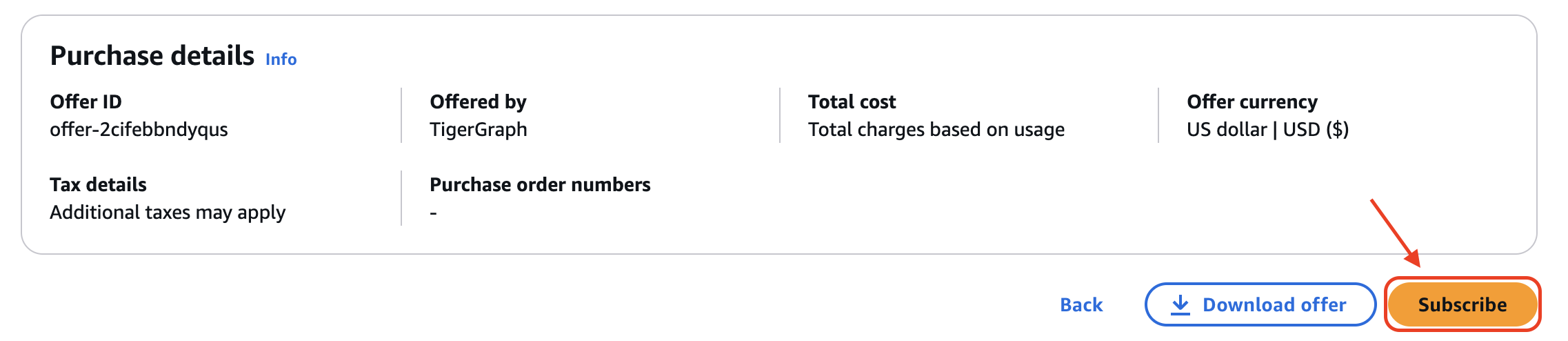
Scroll down to the Subscribe button on the left and select it.
-
A pop up will then appear at the top. Select the Set up your account button on the right to be redirected to Savanna.
If you are not signed in, please sign in to Savanna then click the link again to be redirected to the proper page. 
-
Navigate to the Billing tab in the left navigation panel.
-
Select the Payment Methods tab at the top. Your AWS Marketplace subscription should now appear with its status.
If it says pending, please wait then refresh. It should be activated momentarily. 
Once subscribed, AWS Marketplace becomes the only available payment method. To change your payment method, you must first unsubscribe from AWS Marketplace.
|
If you subscribe mid-billing cycle, the current cycle is charged to your existing credit card. AWS Marketplace metering begins at the start of the next billing cycle. |
Unsubscribe from AWS Marketplace
To unsubscribe from AWS Marketplace, follow the steps below:
-
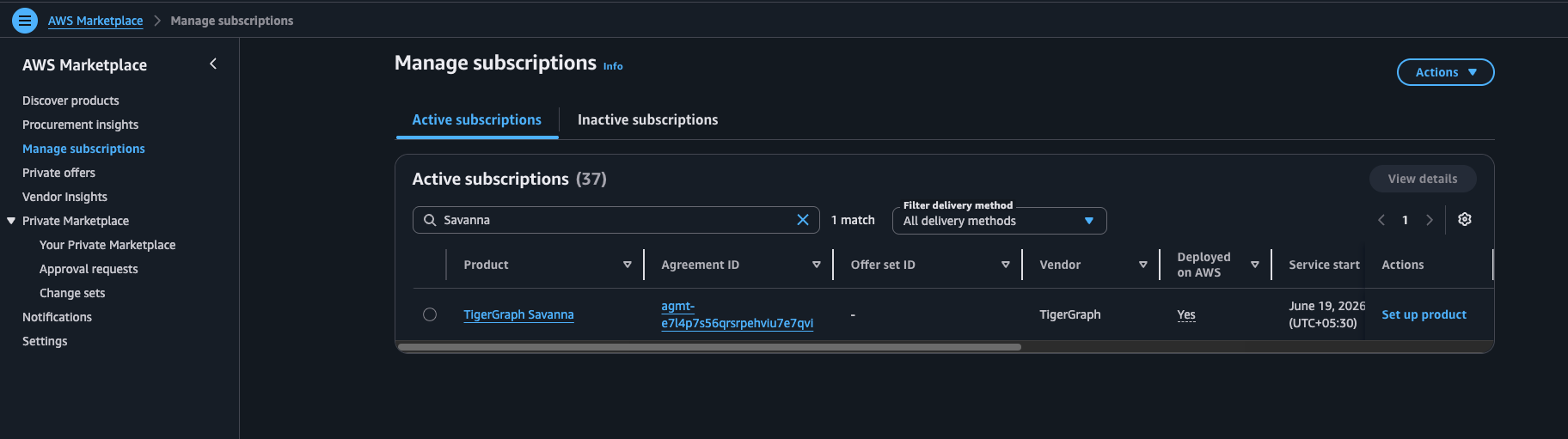
Navigate to Manage subscriptions in AWS Marketplace and locate the TigerGraph Savanna subscription under Active subscriptions.
-
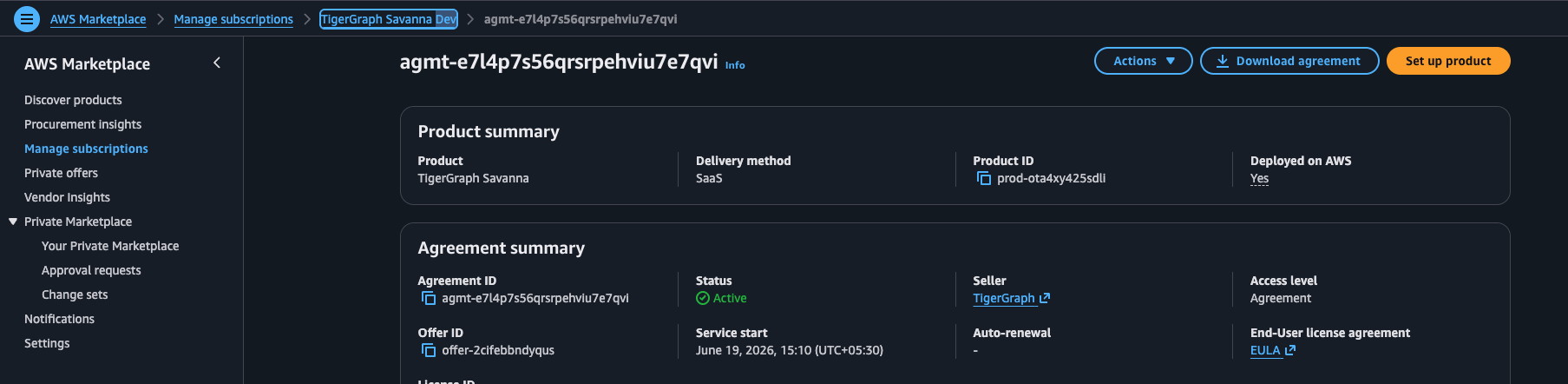
Click the Agreement ID to open the subscription details page.
-
On the subscription details page, click Actions in the top-right corner.
-
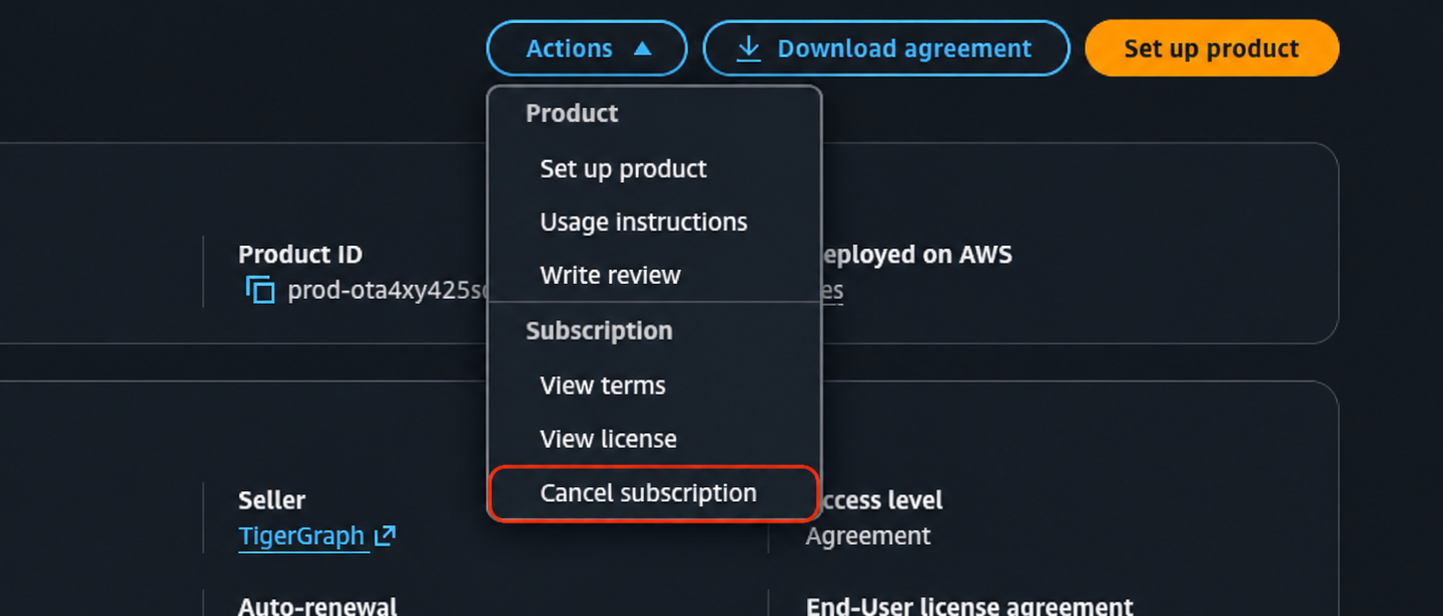
From the Actions menu, select Cancel subscription.
If the AWS Marketplace subscription has been cancelled and no other payment method is configured, click Add Credit Card on the Payment Methods page.
Billing After Canceling Your AWS Marketplace Subscription
If you cancel your subscription, AWS Marketplace bills TigerGraph usage incurred up to the subscription cancellation date.
Add a Payment Method
To continue using Savanna after canceling your AWS Marketplace subscription, add a valid payment method to your organization. Once added, future TigerGraph usage is billed using that payment method.
For the steps to add a payment method.
Billing reconciliation
If you cancel your AWS Marketplace subscription during an active billing cycle, some usage may already have been reported for billing before you switch to direct TigerGraph billing.
TigerGraph reconciles this usage after the transition and applies the appropriate credits to prevent duplicate billing. Billing reconciliation is performed by the TigerGraph team and does not prevent you from continuing to use Savanna after adding a valid payment method.
|
If you cancel mid-billing cycle, we recommend contacting savanna-support@tigergraph.com to resolve any usage already billed through AWS Marketplace. |
Grace period
If your organization does not have an active payment method after cancellation, it progresses through a series of grace period stages, which can ultimately result in permanent deletion of your workspaces and associated database resources.
-
Suspend Grace Period: the period before your workspaces are suspended. Add a valid payment method before it ends to avoid suspension.
-
Workspace suspended: no payment method was added before the Suspend Grace Period ended. The Termination Grace Period begins.
-
Termination Grace Period: the period before your workspaces are permanently deleted. Add a valid payment method before it ends to restore access.
-
Workspace terminated: no payment method was added before the Termination Grace Period ended. Workspaces and associated database resources are permanently deleted.
Grace period durations depend on your organization’s subscription tier. See Subscription Plans and Quota Policy for details.